
How to Find and Remove Duplicate Files
Duplicate files are silent space hogs. Every second copy of a document, photo, video or installer is pure waste — and most people have gigabytes of them without knowing. Here's how to find and safely remove duplicates with DiskRaptor.
Why duplicates pile up
Copies happen everywhere: re-downloaded installers, photos saved twice, files moved with "copy instead of move", backups that were merged, screenshots saved to multiple folders. Over time they quietly eat your storage.
How duplicate detection works
Good duplicate finders don't just compare file names — they compare content using a cryptographic or fast content hash (like DiskRaptor's xxhash3). Two files are duplicates only if their content is identical, regardless of their names.
Step 1: Scan and detect
Open DiskRaptor, pick a drive or folder, and run the duplicate scan. Files are grouped by content hash — you see the group size, the wasted space, and every copy.
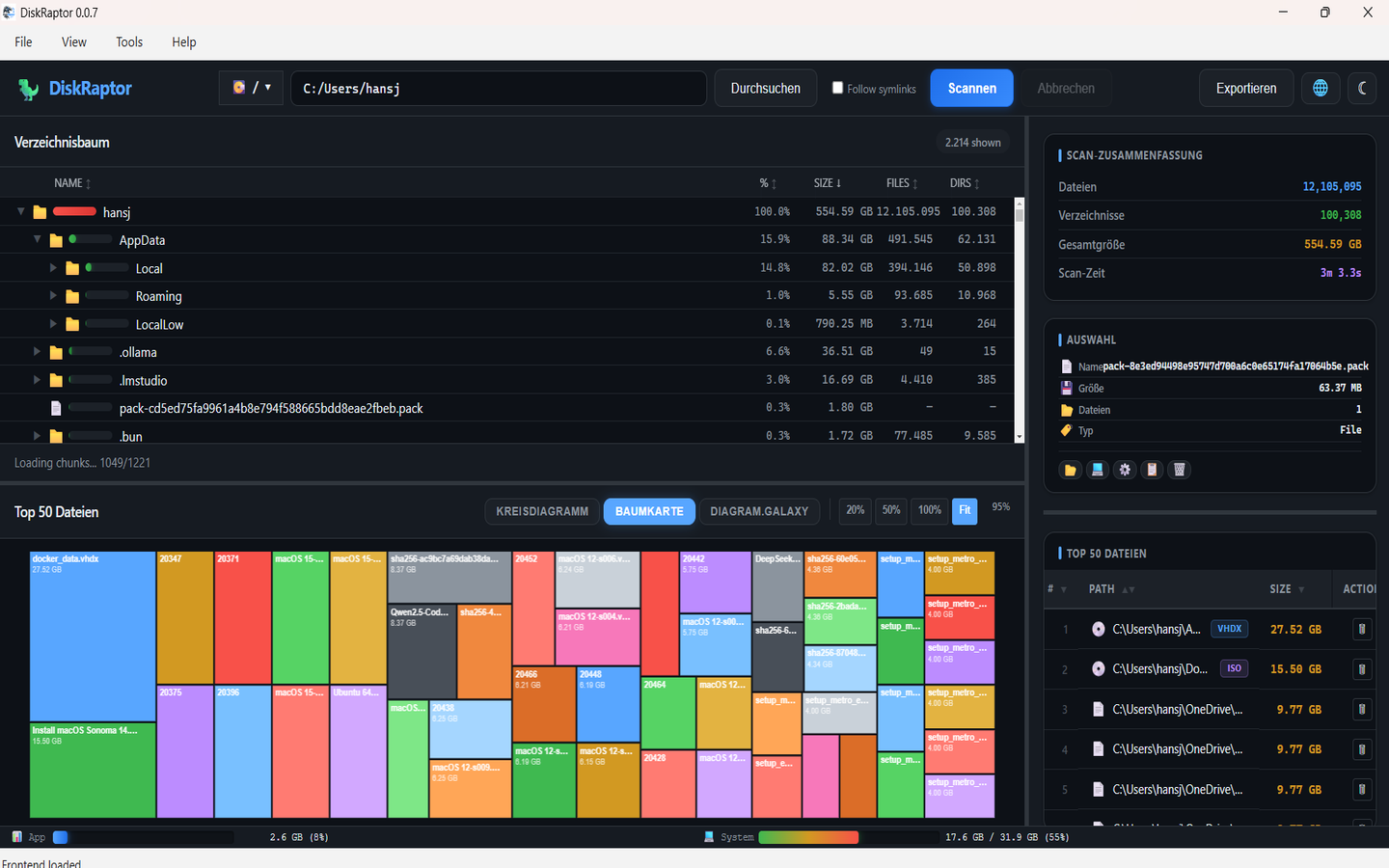
Step 2: Review before deleting
Never delete blindly. Open the files to check they're really the same, verify the group, and decide which copy to keep — usually the one in the "correct" location or with the older date.
Step 3: Delete and reclaim space
Move duplicates to the trash (recoverable if you change your mind) or delete them permanently. DiskRaptor shows you exactly how much space you're reclaiming before you confirm.
Related reading
- How to Free Up Disk Space: 5 Practical Steps
- How to Clean Up Your Downloads Folder
- What Is a Disk Space Analyzer and Why Do You Need One
Reclaim your disk space
DiskRaptor is free, open source, and runs 100% locally.