
How to Free Up Disk Space: 5 Practical Steps
Your disk is full again. Before you buy a new drive, there's usually a lot of space you can reclaim — you just need to find it. Here's a practical, 5-step approach using DiskRaptor, the free open-source disk space analyzer for Windows, macOS and Linux.
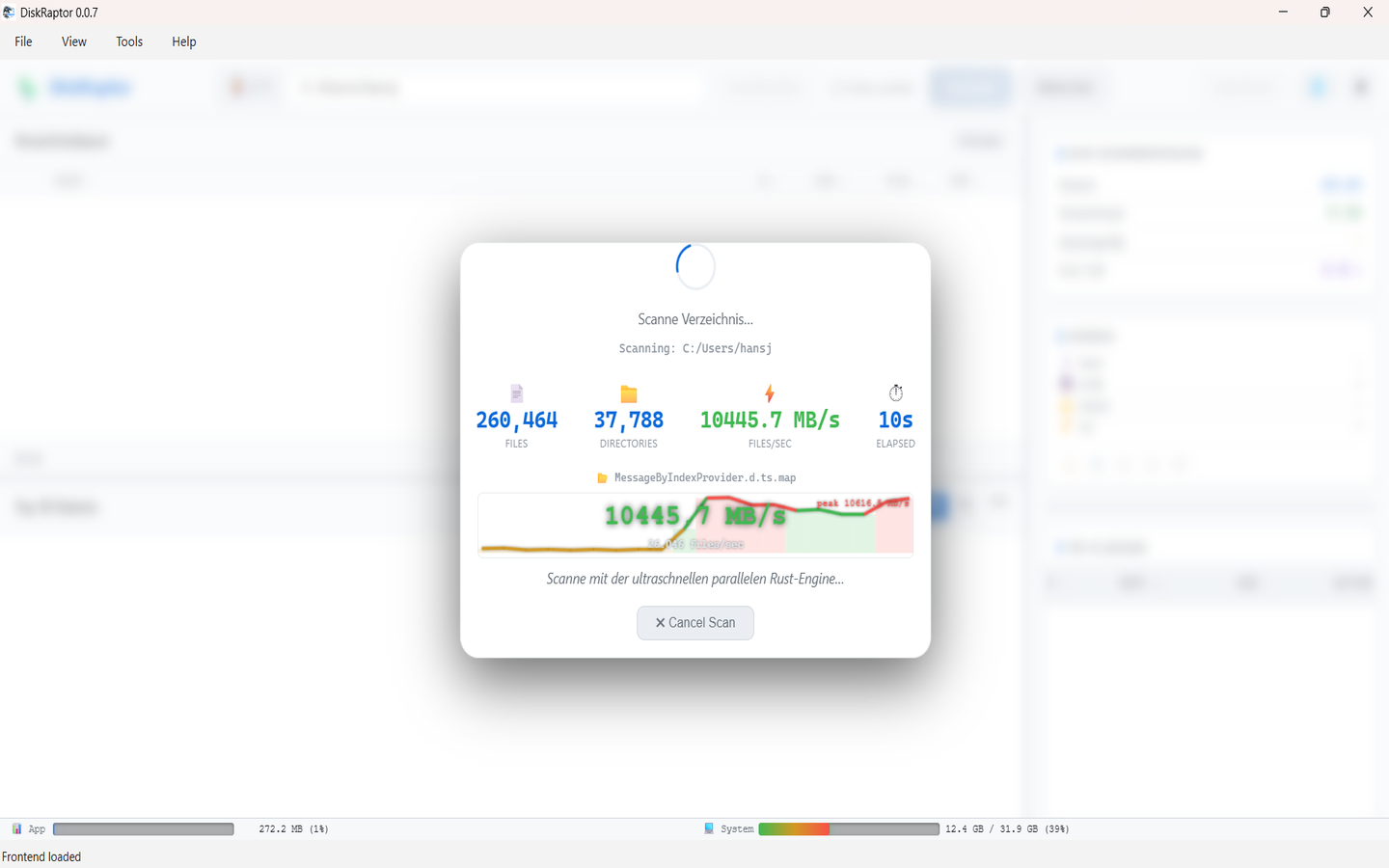
Step 1: Scan your disk
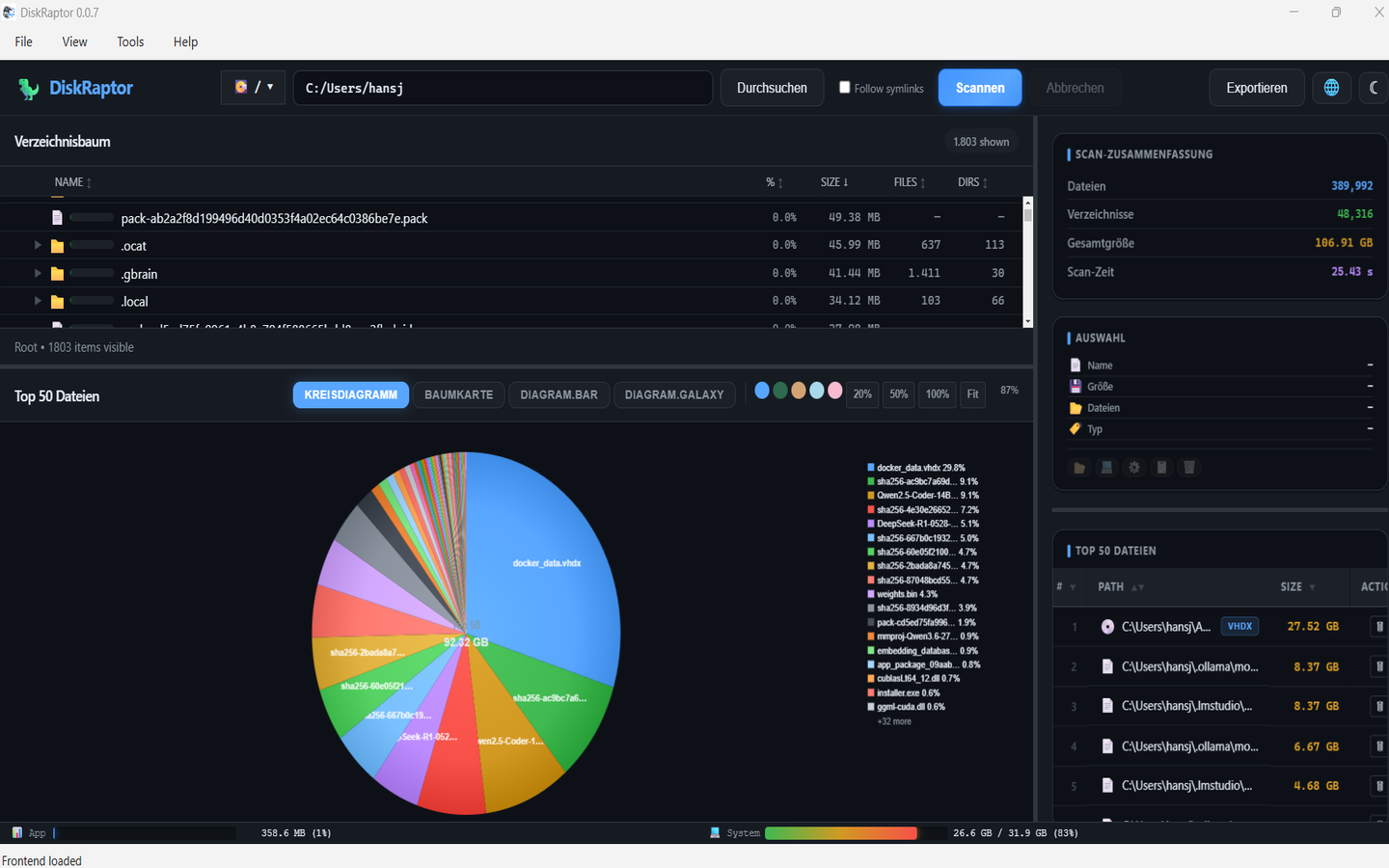
Launch DiskRaptor, pick a drive or folder, and hit Scan. Thanks to its parallel Rust engine, even drives with millions of files are analyzed in seconds.
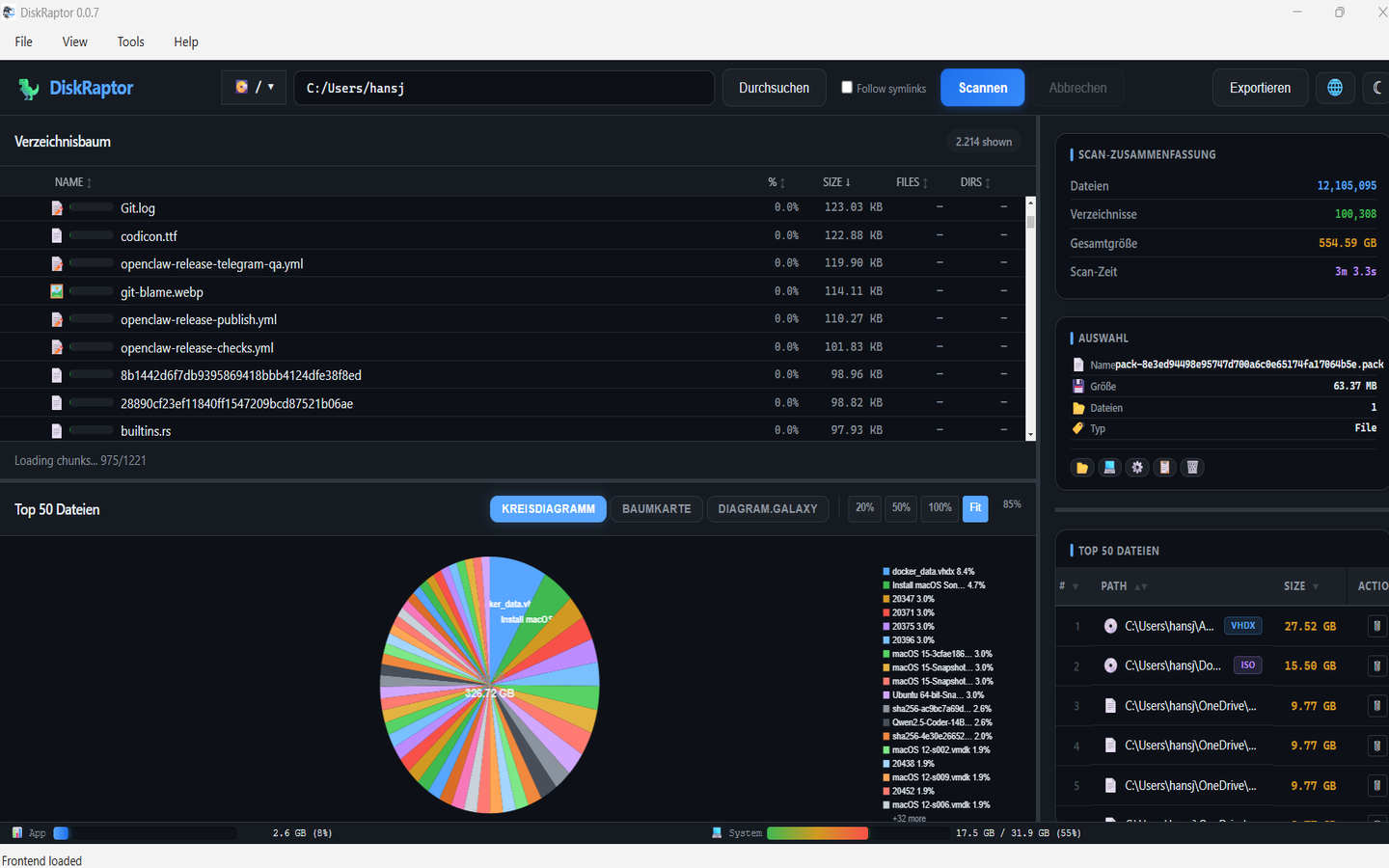
Step 2: Find the space hogs
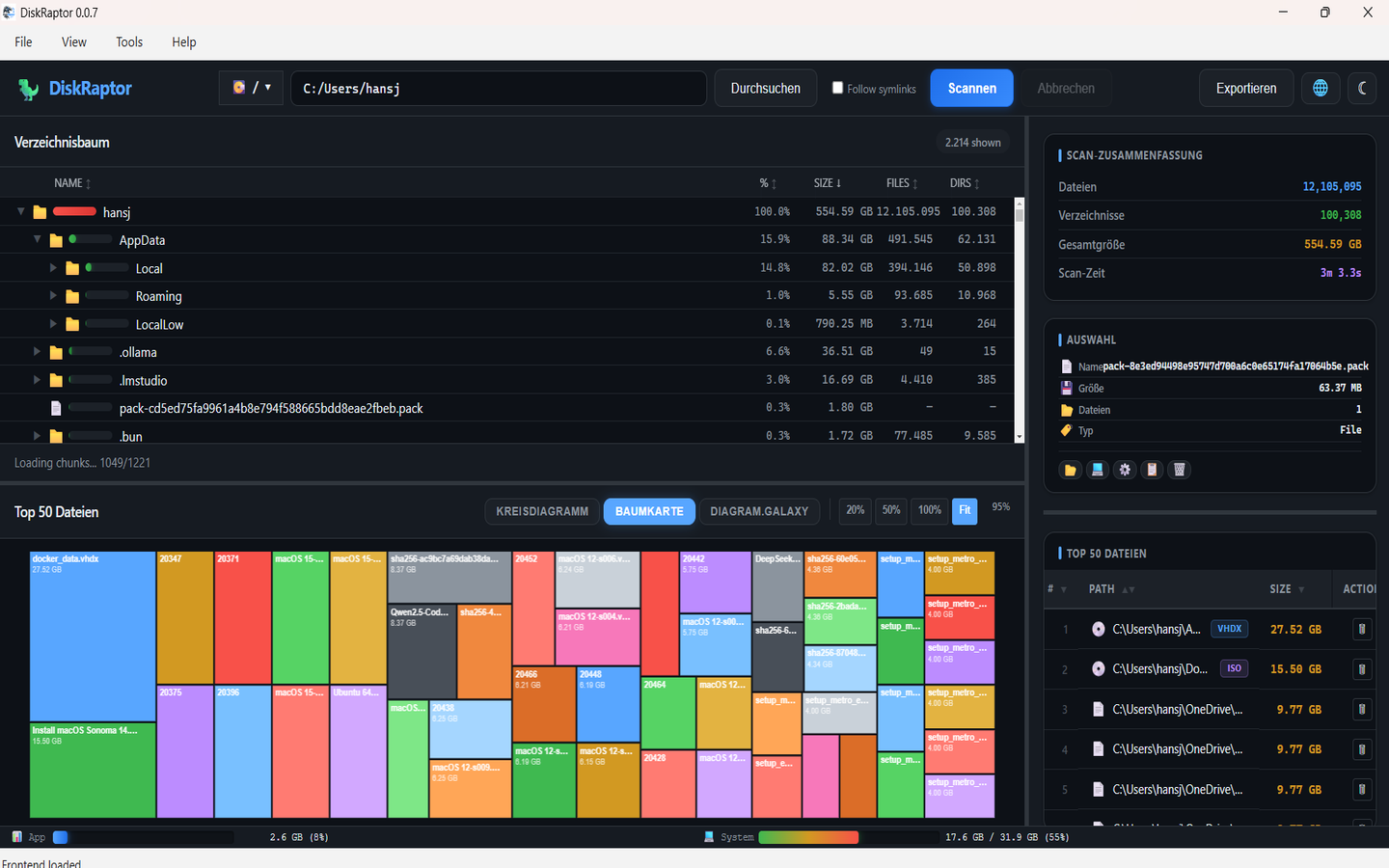
Use the treemap and pie chart to spot what's really eating your storage at a glance. Bigger blocks mean bigger files — no guesswork needed.
Step 3: Remove duplicate files
Duplicates silently waste gigabytes. DiskRaptor's duplicate finder compares files by content hash and groups them for you — review and delete with one click.
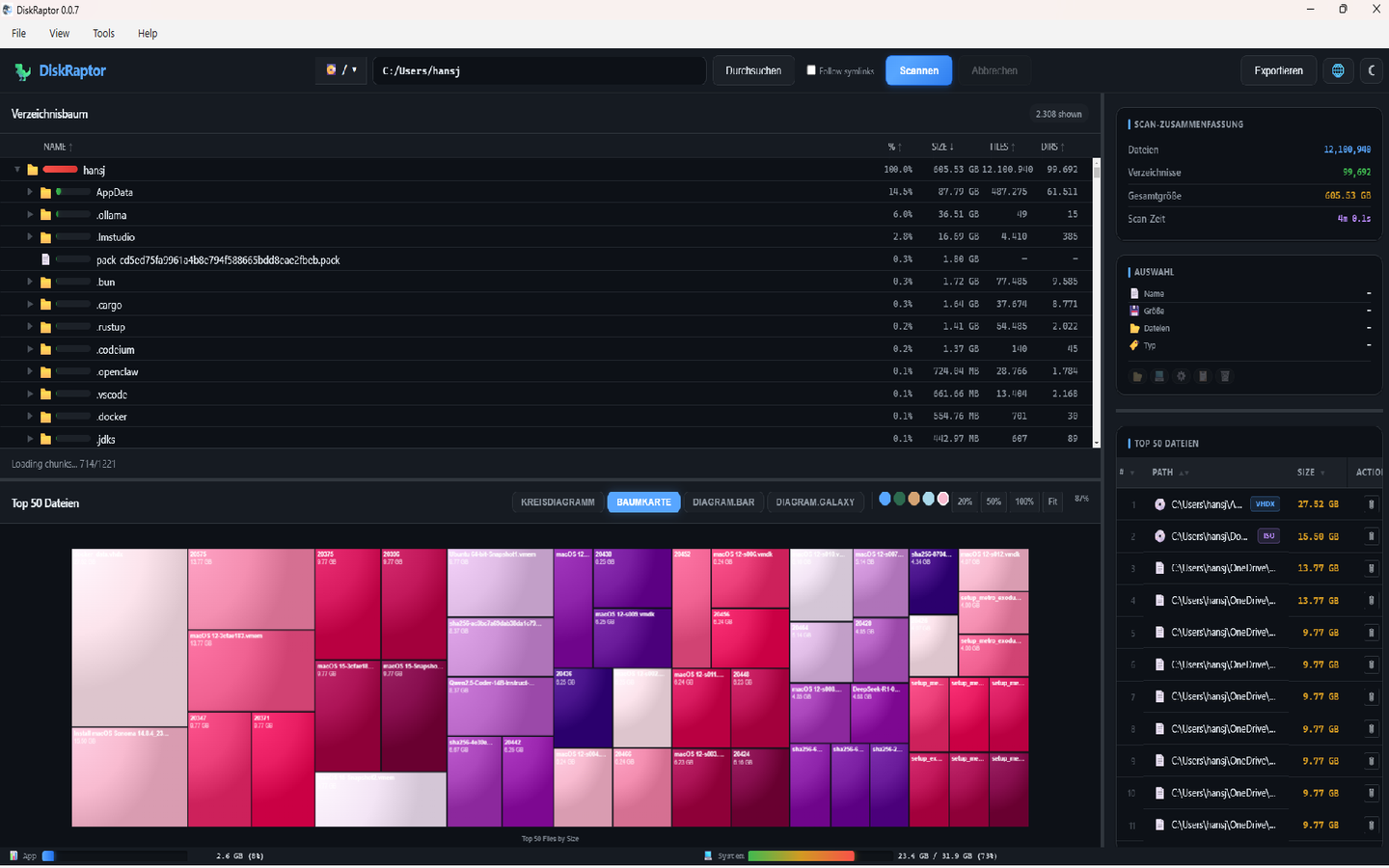
Step 4: Clean up clutter
Downloads folder full? Browser cache bloated? Empty folders everywhere? DiskRaptor's one-click cleanup tools handle downloads, browser clutter, empty folders and more.
Step 5: Keep an eye on disk health
Before your drive fails and takes your data with it, use the S.M.A.R.T. tools to check its health. Early detection means no data loss.
Related reading
- How to Find and Remove Duplicate Files
- How to Clean Up Your Downloads Folder
- How to Monitor Hard Drive Health with S.M.A.R.T.
Ready to free up space?
DiskRaptor is free, open source, and runs 100% locally — no telemetry, no tracking.