
How to Monitor Hard Drive Health with S.M.A.R.T.
Hard drives and SSDs fail — often without any warning. S.M.A.R.T. (Self-Monitoring, Analysis and Reporting Technology) is built into modern drives to track their health. Learning to read it can save you from losing your data.
What S.M.A.R.T. tells you
Your drive constantly records attributes like reallocated sectors, spin-up time, temperature, read/write error rates and power-on hours. When these values cross thresholds, it's a strong sign the drive is failing. S.M.A.R.T. tools like the one built into DiskRaptor read these attributes and present them in a clear health report.
The key attributes to watch
- Reallocated Sectors Count (05) — bad sectors remapped; rising values mean real trouble
- Pending Sectors (C5) — sectors waiting to fail; back up now
- CRC Error Count (C7) — cable problems; check connections
- Temperature (C2) — sustained high heat shortens drive life
- Power-On Hours (09) — how worn the drive is
Step 1: Run a health scan
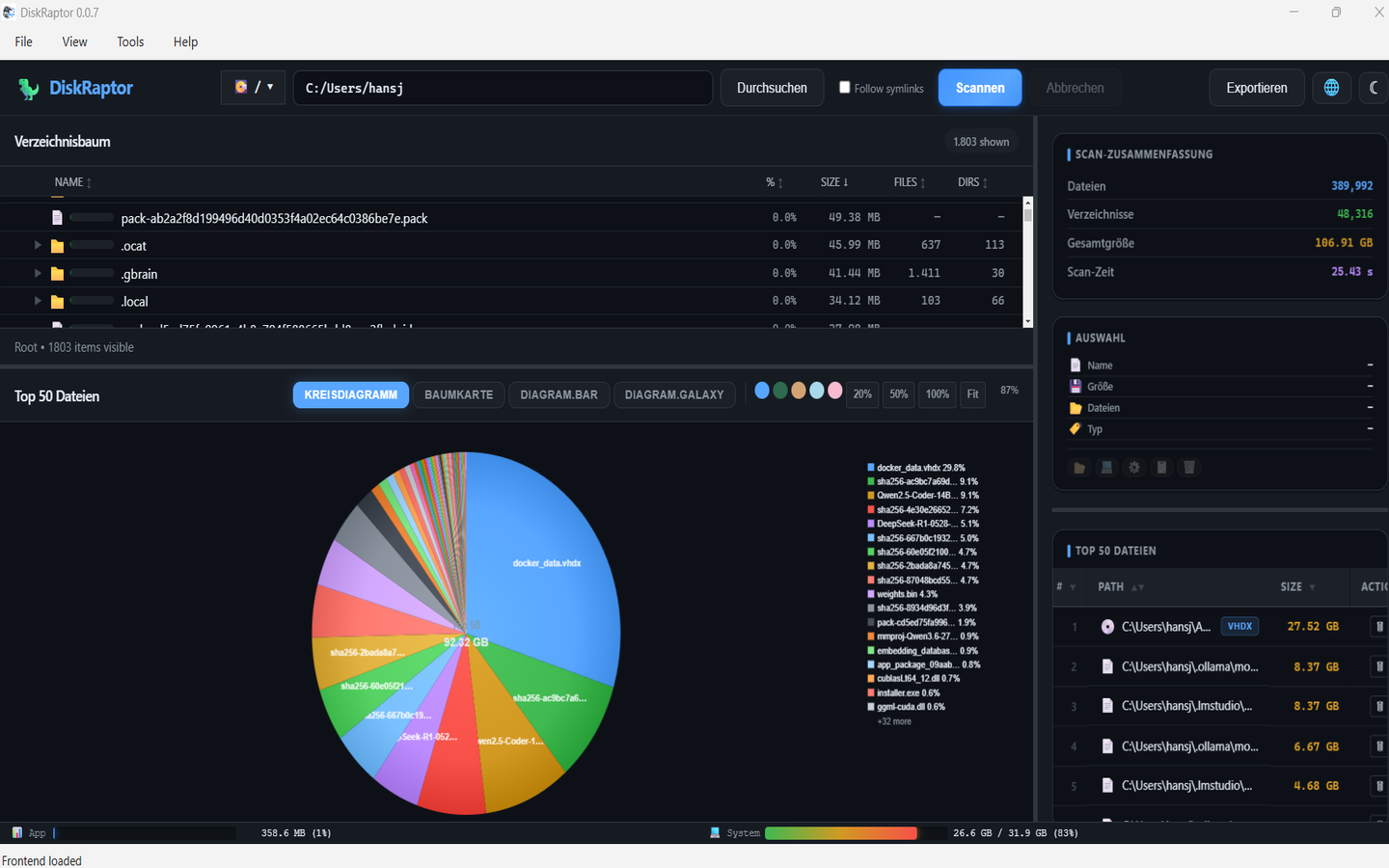
Open DiskRaptor, select a drive and scan its health. The result shows each attribute with its value, threshold and status — so you can judge the drive's condition at a glance.
Step 2: Watch the trend, not just the snapshot
A single reading isn't enough. Check your drives regularly — once a month is a good habit. If reallocated sectors keep climbing, treat the drive as failing and migrate your data.
Step 3: Back up early, back up often
S.M.A.R.T. gives you an early warning, not a guarantee. Follow the 3-2-1 rule: three copies of your data, on two different media, one off-site. When a drive looks unhealthy, move your data first and replace the drive.
Related reading
- Storage Guide: SSD, HDD, USB and NAS — What to Buy
- How to Free Up Disk Space: 5 Practical Steps
- What Is a Disk Space Analyzer and Why Do You Need One
Check your drives today
DiskRaptor's S.M.A.R.T. tools are free, open source, and run 100% locally.