
Disable Hibernation to Free Up Gigabytes (hiberfil.sys Explained)
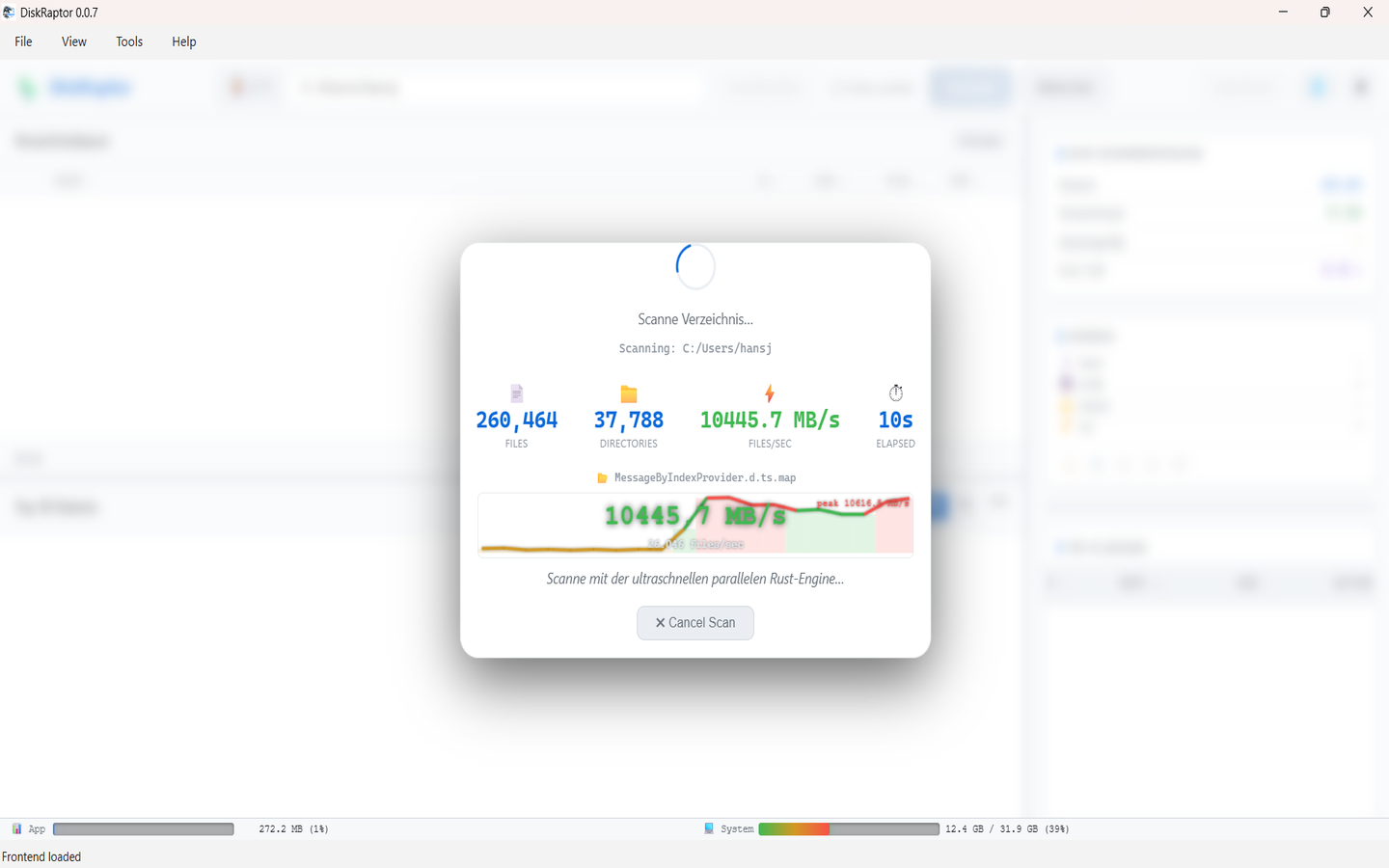
Open C:\ in DiskRaptor and sort by size. On many PCs one of the biggest single files is hiberfil.sys — often 6, 12 or even 16 GB. It's a hidden system file, you never created it, and if you've never hibernated your PC on purpose, it's pure dead weight.
Here's what it is, how to reclaim it with one command, and when you should leave it alone:
What is hiberfil.sys?
When Windows hibernates, it writes the entire contents of your RAM to disk so it can power off completely and resume later. That snapshot lives in C:\hiberfil.sys. Because Windows must guarantee the space is there before you hibernate, the file is reserved permanently — roughly 40–100% of your installed RAM, depending on Windows version and settings.
16 GB of RAM means up to ~16 GB of disk gone. On a 256 GB SSD, that's over 6% of your entire drive for a feature most desktop users never touch.
Sleep vs. hibernate — do you need it?
Don't confuse the two. Sleep keeps RAM powered and wakes in seconds — it doesn't use hiberfil.sys. Hibernate powers off fully and restores from disk. Hibernate matters mainly for laptops running on battery that might fully drain while asleep. On a desktop, or a laptop that's usually plugged in, hibernate is redundant — sleep plus an occasional shutdown covers everything.
Quick check: press Win + X → Shut down or sign out. If there's no Hibernate entry in the menu, you're already not using it — but the disk space is still reserved.
Free it with one command
Disabling hibernation deletes hiberfil.sys instantly and permanently — until you re-enable it:
- Open Start, type
cmd, right-click Command Prompt → Run as administrator - Type
powercfg /hibernate offand press Enter (no output = success) - Rescan C: in DiskRaptor —
hiberfil.sysis gone, gigabytes back
Changed your mind? powercfg /hibernate on (as admin) brings it back. Nothing else on your system is affected — sleep, shutdown and restart all keep working.
When NOT to disable it
Keep hibernation enabled if any of these apply:
- Laptop on battery, often unplugged for hours — hibernate saves your session if the battery dies in sleep.
- You use Fast Startup diagnostics — Fast Startup piggybacks on the hibernation mechanism. Disabling hibernate turns it off too (boot gets a few seconds slower, nothing breaks).
- Your PC is managed by IT — group policy may re-enable it anyway. Ask your admin first.
Verify with DiskRaptor
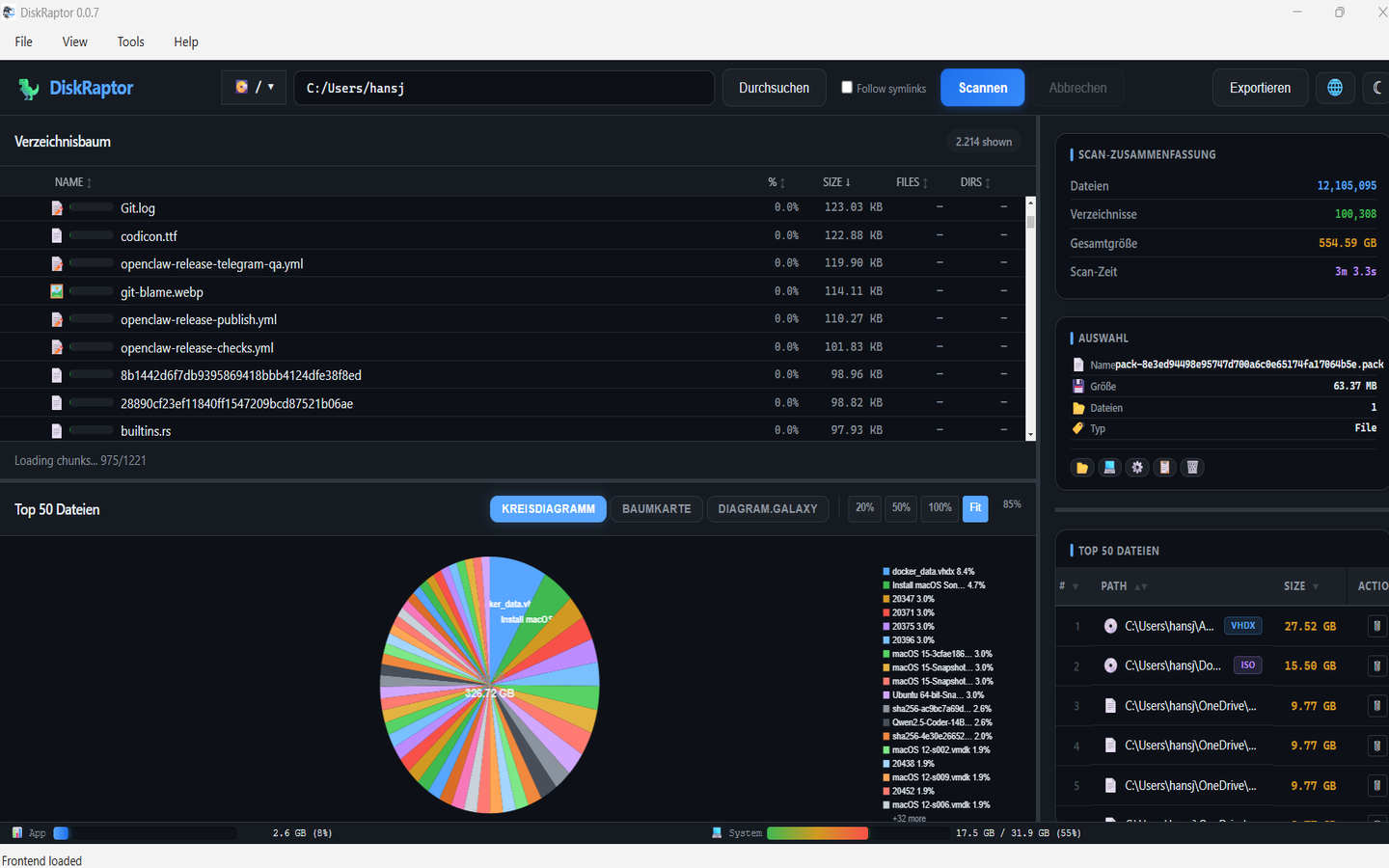
After running the command, rescan and confirm. While you're at it, check the other usual suspects from our 5 biggest space wasters roundup — update caches, old installers and duplicates often hide another 20 GB next to hiberfil.sys:
Related reading
- The 5 Biggest Space Wasters on Every PC
- How to Free Up Disk Space: 5 Practical Steps
- How to Find and Remove Duplicate Files
- How to Clean Up Your Downloads Folder
- How to Clean Browser Cache and Temporary Files
Ready to see what's eating your disk?
DiskRaptor is free, open source, and runs 100% locally — no telemetry, no tracking.